MT4 EA loaded but not placing orders? Troubleshoot step by step by account permissions, switches, and logs
If the EA is not placing orders, first distinguish between no signal and trade rejection, then check account permissions, AutoTrading switch, EA settings, and logs in order.
Author: Thomas | EA and MT4 Practice | November 3, 2026
Summary: An EA is already loaded on the MT4 chart, yet no orders appear for a long time; this does not necessarily mean the program is broken. Account permissions, the AutoTrading switch, the EA's own parameters, signal conditions, and trade server feedback can all affect the result. This article provides a troubleshooting sequence from safety to specifics. The images are original instructional illustrations, not real account screenshots.
First confirm which kind of "no orders" this is
Open the terminal's "Trade" and "Account History" tabs to see whether there are already unfilled pending orders, rejected orders, trades that were executed and then closed, or whether the EA never attempted to place an order at all. The causes of these four situations differ. If you only stare at the icon in the upper-right corner of the chart, it is easy to mistake "allowed to run" for "a valid trading signal has been generated." The EA can perform analysis but has not met entry conditions; in this case, not placing orders may be exactly in line with the strategy design.
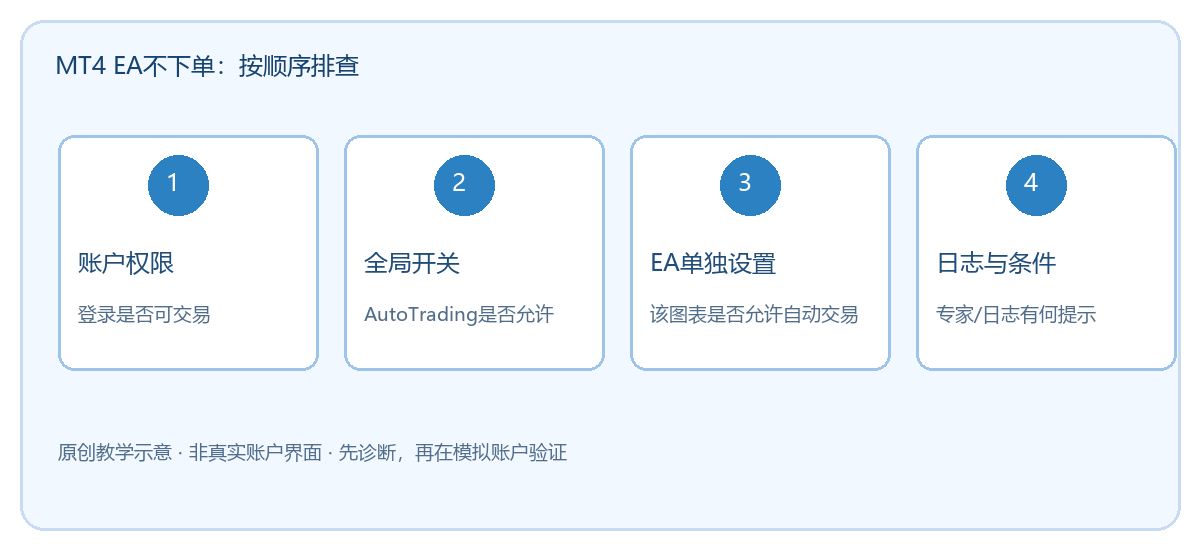
The illustration shows the inspection order: account permissions, global switch, EA-specific settings, logs and strategy conditions. The purpose of the order is to first rule out settings that can be verified at a glance, then look at complex code. During operations, record the account type, symbol, time, and terminal version to avoid mistaking the state of another account or another chart for the current EA state.
Step 1: Does the account have trading permission?
MetaTrader 4 official help distinguishes between the normal trading password and the investor password. Logging in with the investor password allows viewing the account but not trading, and the EA cannot automatically place orders either. First confirm in the terminal that you are logged in to the expected account and server, and whether it is read-only permission. If permissions are normal, then check whether the contract symbol is tradable, whether it is within trading hours, and whether the account has sufficient available margin. Gold XAUUSD may have different suffixes, contract specifications, and trading hours at different service providers; settings from one terminal cannot be directly copied to another provider.
Step 2: Distinguish between the global switch and EA settings
The "AutoTrading" toolbar button in MT4 is a global-level control; there is also an allow automated trading setting under "Tools—Options—Expert Advisors." Official documentation states that after it is turned off, the EA can still run analysis but cannot execute trades. In addition, open the EA properties on that chart and check the EA's own automated trading permission and input parameters. The platform also provides a protection option that automatically disables trading after switching accounts, symbols, or timeframes; those who have recently changed charts should especially check this.
During troubleshooting, do not turn on all external permissions at the same time just to make the EA place orders immediately. DLL imports and WebRequest are not the same as the ordinary trading switch; only configure them within a trusted scope if you truly understand the EA's source and required functions. After changing settings, first confirm the status and logs on a demo account, then consider a live account.
Step 3: Read the logs, do not guess the cause
In the terminal's "Experts" and "Journal" tabs, look for records at the corresponding time, focusing on whether the EA initialized, whether it printed entry conditions, whether it sent an order request, and what the server returned. If the EA has not made any order request, first check the trigger logic, required indicator data, and running timeframe. If a request was sent but failed, then check the lot size, minimum volume, stop distance, quote status, and market session according to the specific error. Restrictions vary by service provider; an error code table found online cannot be treated as the final rule for your own account.
Step 4: Verify the fix and keep evidence
Change only one item at a time, and record the time before and after the change, settings, logs, and test results. First use a demo account or the strategy tester for controlled verification, then observe differences in the live environment. Execution conditions, spreads, and slippage in backtests may differ from live trading; do not conclude that live trading will definitely execute just because the backtest can place orders. If the EA comes from a third party, also check the version, license period, and whether the account used is supported. If the issue still cannot be located, submit redacted log excerpts, terminal version, and reproduction steps to the developer or service provider; do not send account passwords. Automated trading can amplify configuration errors and market risk; this article is for operational instruction only and does not guarantee trading results.

MT4 EA troubleshooting guides →