How to Troubleshoot MT4 EA Error 130? A Four-Step Method from Stop-Loss Distance to Dynamic Limits
Use an original light-blue flowchart to troubleshoot MT4 EA's ERR_INVALID_STOPS step by step: logs, quote precision, MODE_STOPLEVEL, and dynamic limits, and avoid masking risk by loosening stop-losses.
Author: Thomas | EA and MT4 Practice | October 20, 2026
When an EA has already been attached to a chart and automated trading is enabled, but "130" appears when submitting an order, it usually makes people mistakenly think the program is completely broken. The MQL4 reference documentation lists 130 as ERR_INVALID_STOPS: the stop-loss/take-profit in the request, the pending order price, or the way it is normalized was not accepted by the trading server. It is a clue for locating the issue, not a reason to blindly loosen stop-losses. This article uses a four-step troubleshooting method to explain which records to check.
Step 1: First determine which request failed
Open the relevant log in the MT4 terminal or program, and record the server time of the error, the symbol, the order direction, whether the operation was OrderSend or OrderModify, and the returned error code. If the log only says "order failed," first have the EA record the request price, stop-loss, take-profit, and return value without outputting sensitive data such as passwords. First distinguish between failed position opening, failed stop-loss modification, and failed pending order; the price relationships to check differ among the three.
Do not "try your luck" in a live account by repeatedly sending the same failed request. Repeated attempts may create extra load, and may also suddenly succeed after market changes and produce an unexpected position. First reproduce in a demo environment, and keep the parameter version and the platform quotes at that time.
Step 2: Verify Bid, Ask, Point, and Digits
MQL4's MarketInfo can read the current symbol's Bid, Ask, Point, and Digits. Point represents one of the smallest display units of the quote, and Digits indicates the number of decimal places; how many dollars "10 points" equals must be calculated based on the symbol's actual Point, and the gold symbol codes and precision of different brokers must not be conflated. Prices must also be normalized to the corresponding number of digits before being passed in.
An example is for mathematical illustration only: if a demo symbol has Point 0.01 and a minimum distance of 50 points, the calculated distance is 0.50 quote units; for a symbol with Point 0.001, it is 0.05. The numbers do not represent any real platform's contract rules today. When checking logs, also save the bid and ask prices, to avoid using the sell price to check the side that should reference the buy price, or vice versa.
Step 3: Check MODE_STOPLEVEL and order type
The official OrderSend documentation states that stop-loss and take-profit cannot be too close to the market price; the specified opening price of a pending order also cannot be too close to the current market. MarketInfo(Symbol(),MODE_STOPLEVEL) can be used to query the publicly available minimum distance, in points. Then, depending on whether the order is a buy, sell, or which type of pending order, verify the price direction, distance, and normalization separately, rather than applying one fixed offset to all orders.
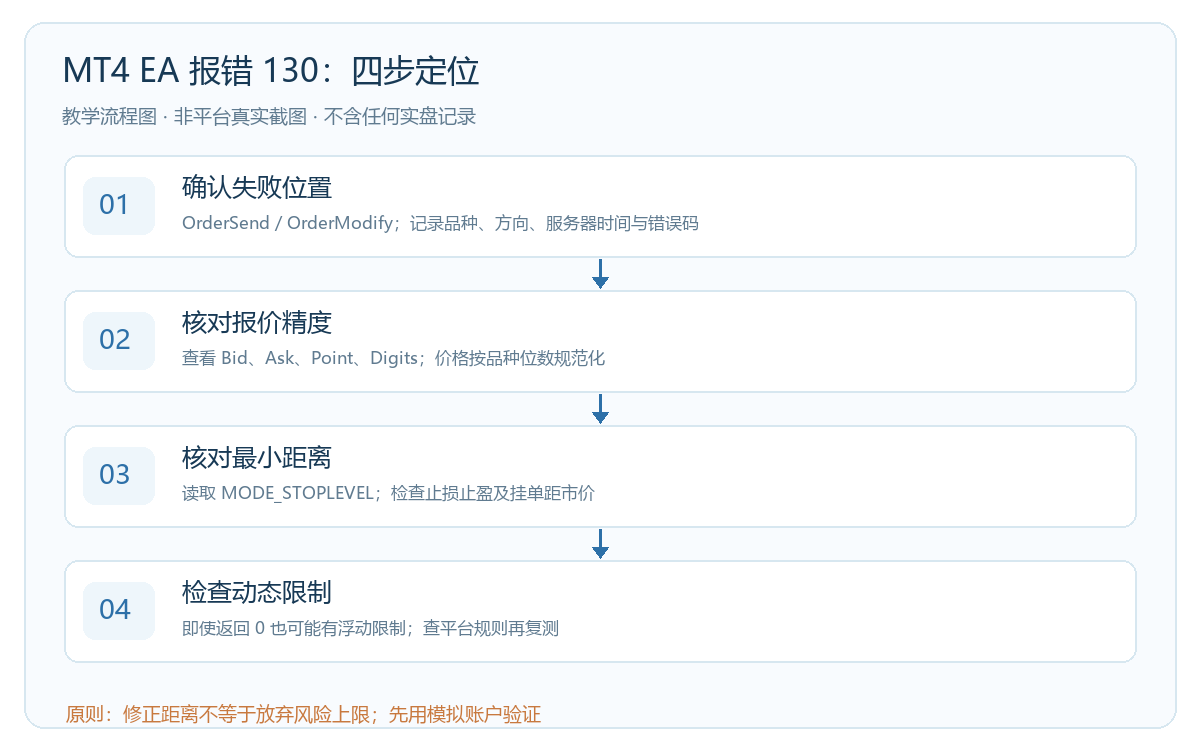
The image above is an original process illustration and contains no real quotes or account information. The minimum distance is only the technical boundary for the server to accept an order, and is not equal to a strategically reasonable stop-loss distance. If the stop-loss is moved farther away to bypass 130, the originally planned per-trade risk will increase; position size should be recalculated first, and if necessary the trade should be abandoned.
Step 4: A return of 0 does not prove there is no limit
The official MQL4 description of MODE_STOPLEVEL specifically warns that a return of 0 may mean there is no fixed minimum distance, or it may mean the server uses a dynamic limit that the terminal cannot directly represent. The latter case may still return 130. Therefore, "if it returns 0, place the stop-loss right next to the price" does not hold. During severe market changes, quote updates, spread changes, and server-side rules may also invalidate previously calculated distances.
If the code formula matches the log at the time and 130 still occurs, keep the failure time, symbol, order parameters, and platform version, check the broker's symbol specifications and order restrictions, and verify with the platform's technical support. Do not infer this account's rules from another platform's Point and StopLevel, and even more importantly, do not mask the real cause of failure by deleting the stop-loss.
Verification order after fixing
First run a minimal reproducible case in a demo account: use the same symbol to record the four quote parameters and StopLevel, send a single test request, and check the server response and order status. Then test behavior during rapid price changes or different trading sessions. Confirm that the program has a stop or cooldown mechanism after failure and will not repeatedly open positions during retries. Finally, verify whether the risk budget, spread, and acceptable loss still match the original plan.
The focus of troubleshooting error 130 is "why the request was rejected," not "how to force it to execute." EA results are also affected by strategy logic, network, and platform execution; no fix guarantees profit or avoids loss. Leveraged trading may cause substantial losses.

MT4 EA troubleshooting guides →